
If you’ve ever wanted to save a video to watch later, subscribe to your favorite creator, or even start sharing your own videos, you’ll need a Google Account. Think of this account as your “all-access pass” to YouTube.
The best part? It’s completely free and takes less than five minutes to set up. You don’t need to be a “tech person” to do this—just follow these simple steps.
Step 1: Visit the YouTube Website
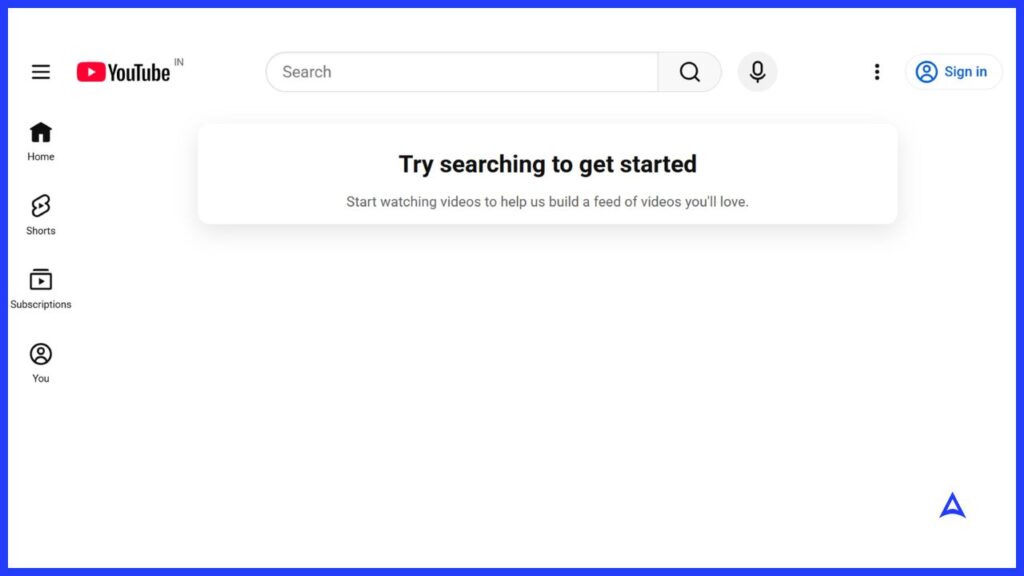
First, open your internet browser (like Chrome, Safari, or Edge) and go to www.youtube.com.
Look at the top right corner of the screen. You will see a blue button that says Sign in. Even though you don’t have an account yet, click that button to get started.
Step 2: Choose “Create Account”
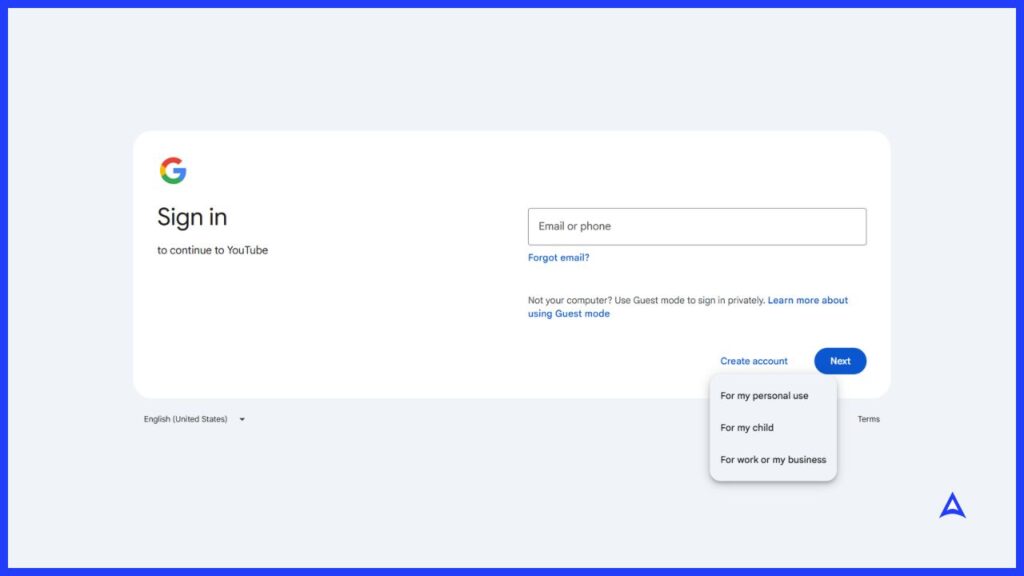
On the sign-in page, you’ll see a link that says Create account. When you click it, a small menu will pop up asking who the account is for:
- For my personal use: Choose this one if you just want to watch and enjoy videos.
- For work or my business: Choose this if you’re planning to build a professional brand.
Tip: Most people should start with “For my personal use.” You can always change things later!
Step 3: Enter Your Basic Details
Now, Google will ask for some basic information. Don’t worry, it’s just the essentials:
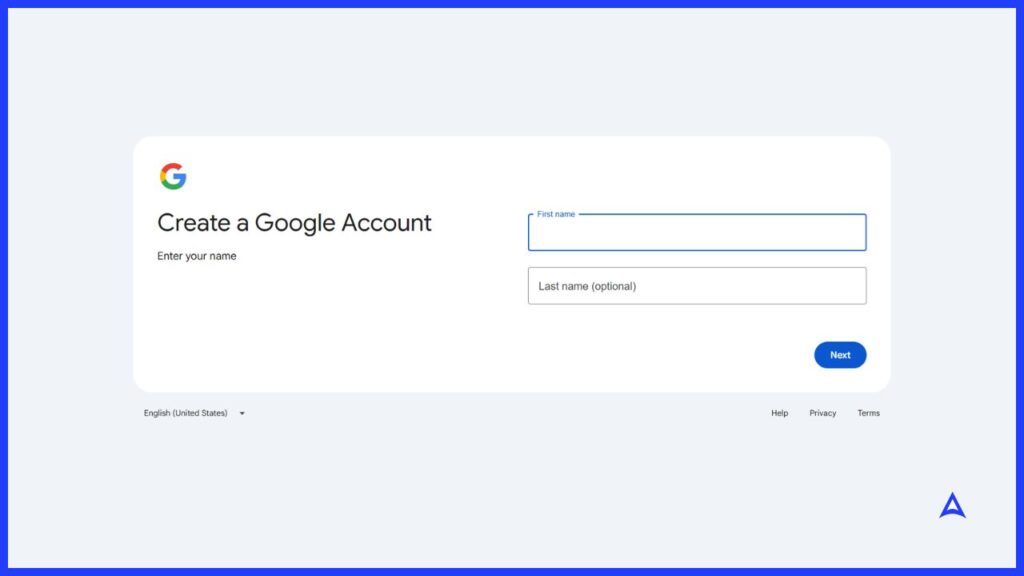
- Name: Enter your first and last name.
- Birthday & Gender: Google uses this to make sure you’re old enough to use the platform.
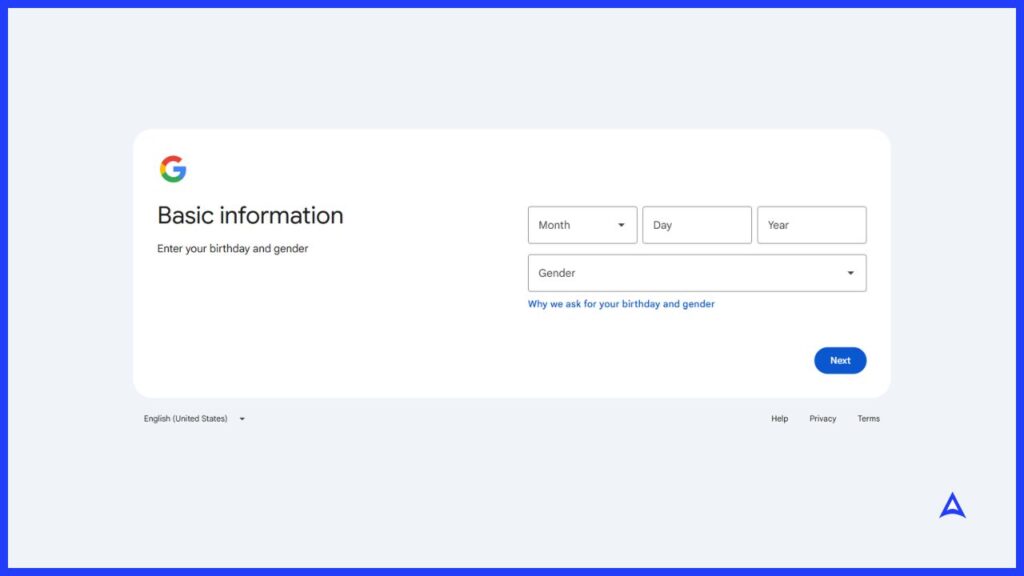
- Choose your email: You can either use an email address you already have or click “Get a Gmail address instead” to create a brand new one (e.g., yourname@gmail.com).
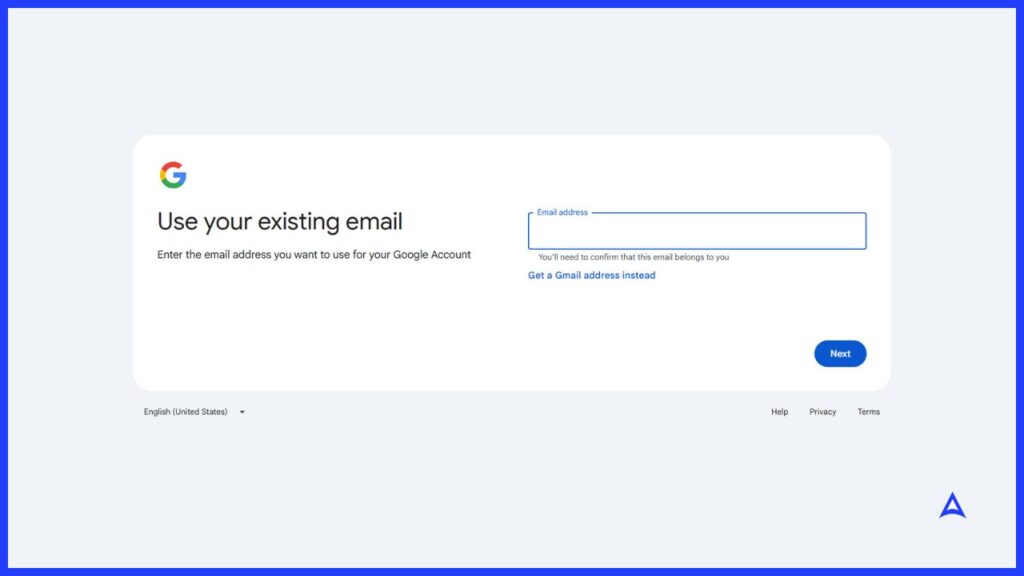
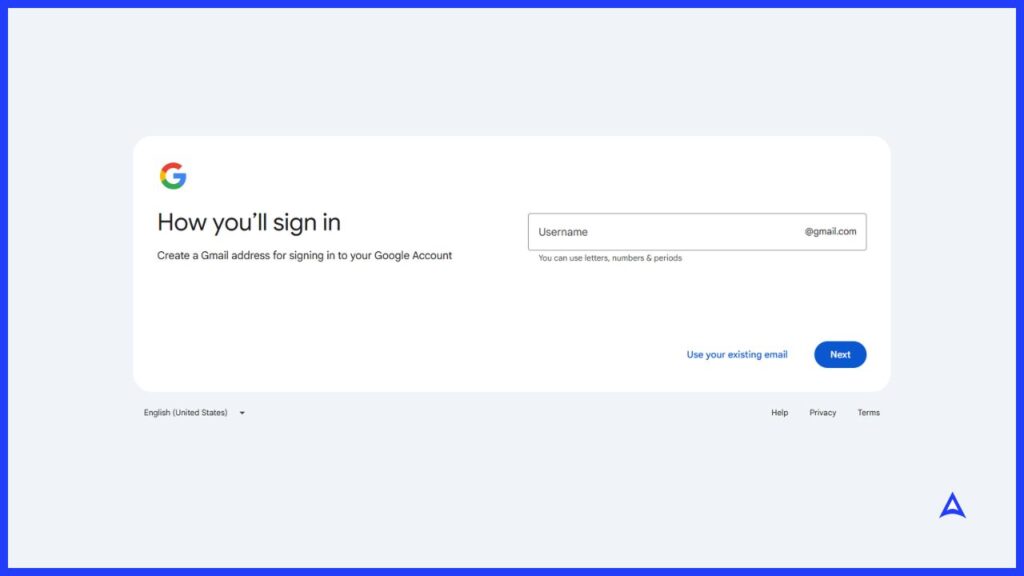
Step 4: Create a Strong Password
This is like the key to your house. You want it to be strong so no one else can get in.
- Use a mix of letters, numbers, and symbols (like ! or #).
- Write it down on a piece of paper and keep it in a safe place!
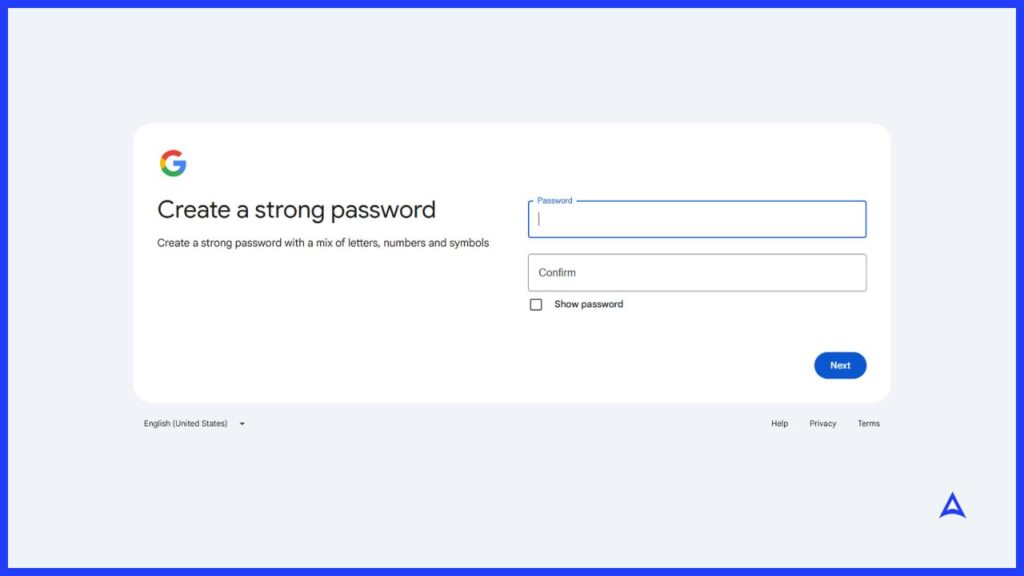
Step 5: Verify Your Phone Number
Google will ask for your phone number to send a quick text message with a 6-digit code. This is just to prove you’re a real person and not a robot.
- Type in the code you receive on your phone and click Verify.
Step 6: The “I Agree” Part
Finally, you’ll see a page about “Privacy and Terms.” This is just the legal way of saying how Google keeps your info safe. Scroll to the bottom and click the blue I agree button.
You’re All Set!
Congratulations! You are now officially signed in to YouTube.
What can you do now?
- Subscribe: Click the “Subscribe” button on channels you like so you never miss their new videos.
- Like: Give a “thumbs up” to videos that help you or make you laugh.
- Library: Find all the videos you’ve liked or saved in one easy spot.
Ready to take the next step?If you want to start uploading your own videos, just click on your profile picture in the top right and select “Create a channel.” It’s that easy!